
Overview #
The One2Five Customer Ratings Plugin is designed to help WooCommerce store owners manage and handle customer reviews and ratings, enhancing user engagement and credibility. This plugin is specifically built for WooCommerce and offers seamless integration, enabling robust features that leverage user-generated content to boost sales and customer trust.
Key Features #
- Product Synchronization: Supports both bulk and individual product sync with an external review management system.
- WooCommerce Review Disable: Automatically disables WooCommerce’s native review system for a streamlined experience.
- Customizable Forms: Review submission forms are fully customizable to suit your store’s brand.
- Advanced Review Display: Customizable options for displaying reviews and ratings on product pages.
- Sales Growth: Utilize user-generated content to drive sales, improve product development, and build trust.
Installation #
Step 1: Install the Plugin
- Upload Plugin Files
- If you have the plugin files in a ZIP format, log in to your WordPress admin dashboard.
- Go to Plugins > Add New and click on the Upload Plugin button at the top.
- Click Choose File, select the
one2five.zipfile from your computer, and then click Install Now. - Alternatively, you can manually upload the plugin files by unzipping them and placing the entire
one2fivefolder in the/wp-content/plugins/directory on your server.
- Activate the Plugin
- After the installation, go to Plugins > Installed Plugins in the WordPress dashboard.
- Find the One2Five plugin in the list and click on the Activate link to enable it on your site.
- Once activated, you should see a new settings section for One2Five within the WooCommerce settings.
Step 2: Configure Plugin Settings
- Access the Plugin Settings
- To configure the plugin, go to WooCommerce > Settings in your WordPress dashboard.
- In the settings menu, you should now see a tab labeled One2Five. Click on this tab to access the plugin’s configuration options.
- Configure Settings
- Navigate to WooCommerce > Settings > One2Five to configure the plugin options.
One2Five Review App Global Config Settings #
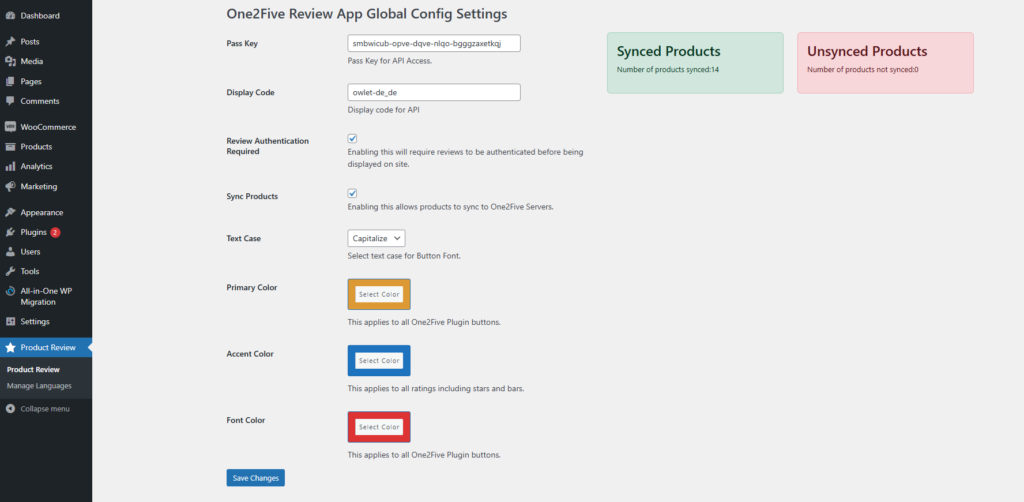
The screenshot displays the One2Five Review App Global Config Settings within a WordPress dashboard interface. Below is a breakdown of each configuration option:
- Pass Key:
- A field for entering a passkey that allows API access to the One2Five Review App.
- Display Code:
- A code which represents the market using company name, country name and language. In the given example (electrolux_fr_ch) – electrolux represents the company, fr represents the language(French) and ch represents the country (Switzerland).
- Review Authentication Required:
- A checkbox option. When enabled, reviews must be authenticated before they are displayed on the site.
- Sync Products:
- A checkbox option to enable or disable automatic synchronization of products to One2Five servers.
- Text Case:
- A dropdown menu to select the text case for button fonts. Options include “Capitalize” and other text casing styles.
- Primary Color:
- A color selector for setting the primary color of all One2Five plugin buttons. This is applied to main button elements.
- Accent Color:
- A color selector to set the accent color, used in ratings such as stars and bars.
- Font Color:
- A color selector for setting the font color on One2Five plugin buttons.
- Save Changes Button:
- A button to save any changes made to the settings.
Synced and Unsynced Products Summary
- Synced Products: A green box displaying the number of products successfully synced (e.g., “14” in the screenshot).
- Unsynced Products: A red box showing the count of products that have not been synced (e.g., “0” in the screenshot).
This setup allows users to manage One2Five Review App configurations effectively from the WordPress admin dashboard, controlling review authentication, product syncing, and visual customization of the review elements on their site.
Product Details and Customer Review Form Layout #
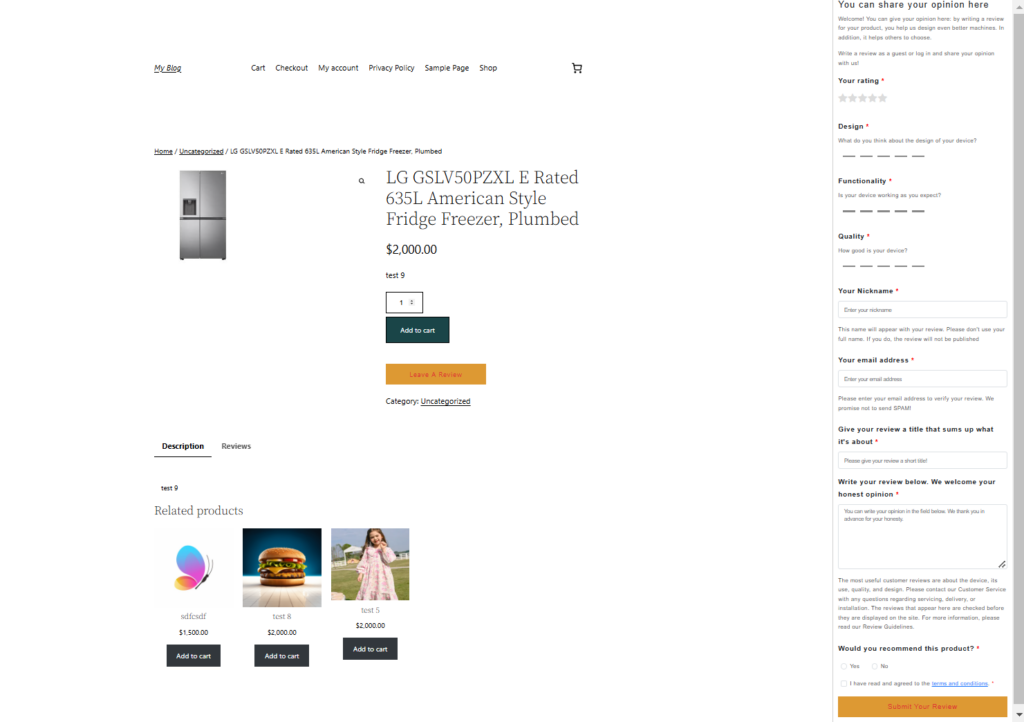
The screenshot shows a product page on a WordPress/WooCommerce website for an LG refrigerator, priced at $2,000.00. The page includes:
- Product details, image, and price.
- Options to add the product to the cart, adjust quantity, and leave a review.
- Tabs for Description and Reviews.
- A Related products section displaying other items.
On the right side, there’s a review form with fields for rating, design, functionality, quality, nickname, email, review title, and review content. It includes radio buttons for recommending the product and a checkbox to agree to terms and conditions before submitting the review.
Product Page #
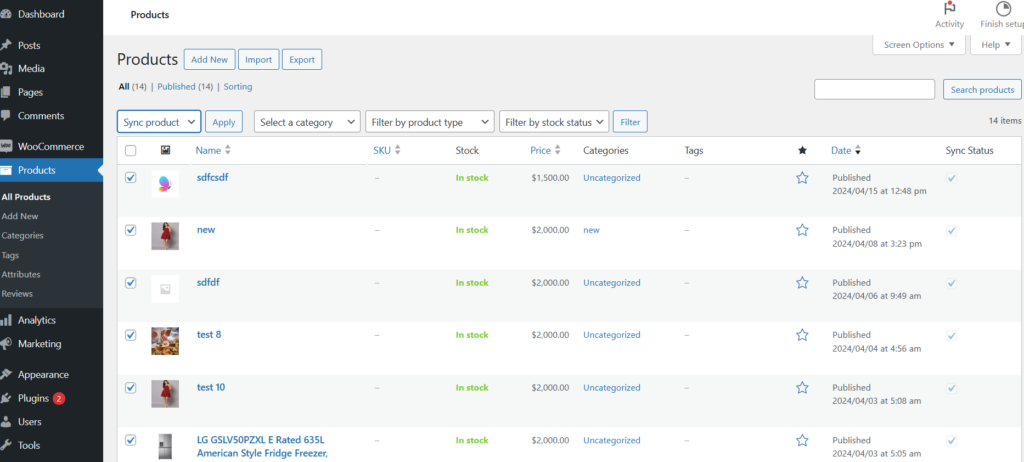
In WooCommerce, the Products page includes several key functionalities for managing and syncing products:
Product Sync
The Sync Product feature allows you to synchronize multiple products at once, ensuring that product information is updated across the site and any integrated systems. By selecting multiple products using the checkboxes beside each product name, you can apply a sync action to update stock levels, pricing, descriptions, or other details for those products simultaneously. This is particularly useful when managing a large inventory, as it saves time by updating multiple items in bulk rather than one at a time.
Add Product
The Add New button enables you to create a new product from scratch. When adding a product, you can set various details such as:
- Product Name and Description: Define the main product information that customers will see.
- SKU: Assign a unique SKU for tracking.
- Price and Sale Price: Set the regular and any discounted prices.
- Categories and Tags: Categorize the product to improve organization and filtering.
- Stock Status: Mark whether the product is in stock, backordered, or out of stock.
- Images and Galleries: Add visuals that help customers view the product.
- Product Type: Choose if it’s a simple, variable, grouped, or external product.
After setting all details, the product will be published on the WooCommerce store and available to customers.
Import Product
The Import button allows you to upload multiple products at once using a CSV file. This is particularly useful for bulk uploading a large number of products, as you can prepare the product data in advance in a CSV file, including all relevant fields (name, price, SKU, description, stock status, etc.).
During the import process, WooCommerce provides options to map CSV columns to product fields. This feature is very helpful for stores with large inventories or when migrating products from another platform.
Export Product
The Export functionality enables you to download a CSV of your products. This file can be used as a backup, for bulk edits, or for transferring products to another site.
Frequently Asked Questions #
Does this plugin work with any theme?
Yes, One2Five Customer Ratings is compatible with all themes that support WooCommerce.
What is required to use this plugin?
WooCommerce must be installed and activated on your WordPress site.
How do I sync my products?
- Go to the Product Review settings page and enable the Sync Products checkbox.
- To sync products in bulk:
- Navigate to WP Admin > Products > All Products.
- Select the products you want to sync, choose Sync Product from the bulk actions dropdown, and click Apply.
- To sync a single product, click the sync icon in the Sync Status column in the product table.
License #
One2Five Customer Ratings is open-source software licensed under the GNU General Public License v3.0. For more details, please see the license documentation.
This documentation provides all necessary information for using, configuring, and troubleshooting the One2Five Customer Ratings plugin. If you encounter any issues, refer to the support forum or developer resources.